Microsoft Teams now reads the QR codes you share
Teams blurs external QR images, decodes every code and checks the URL inside. What each layer does, what recipients see, and how to share codes that pass.

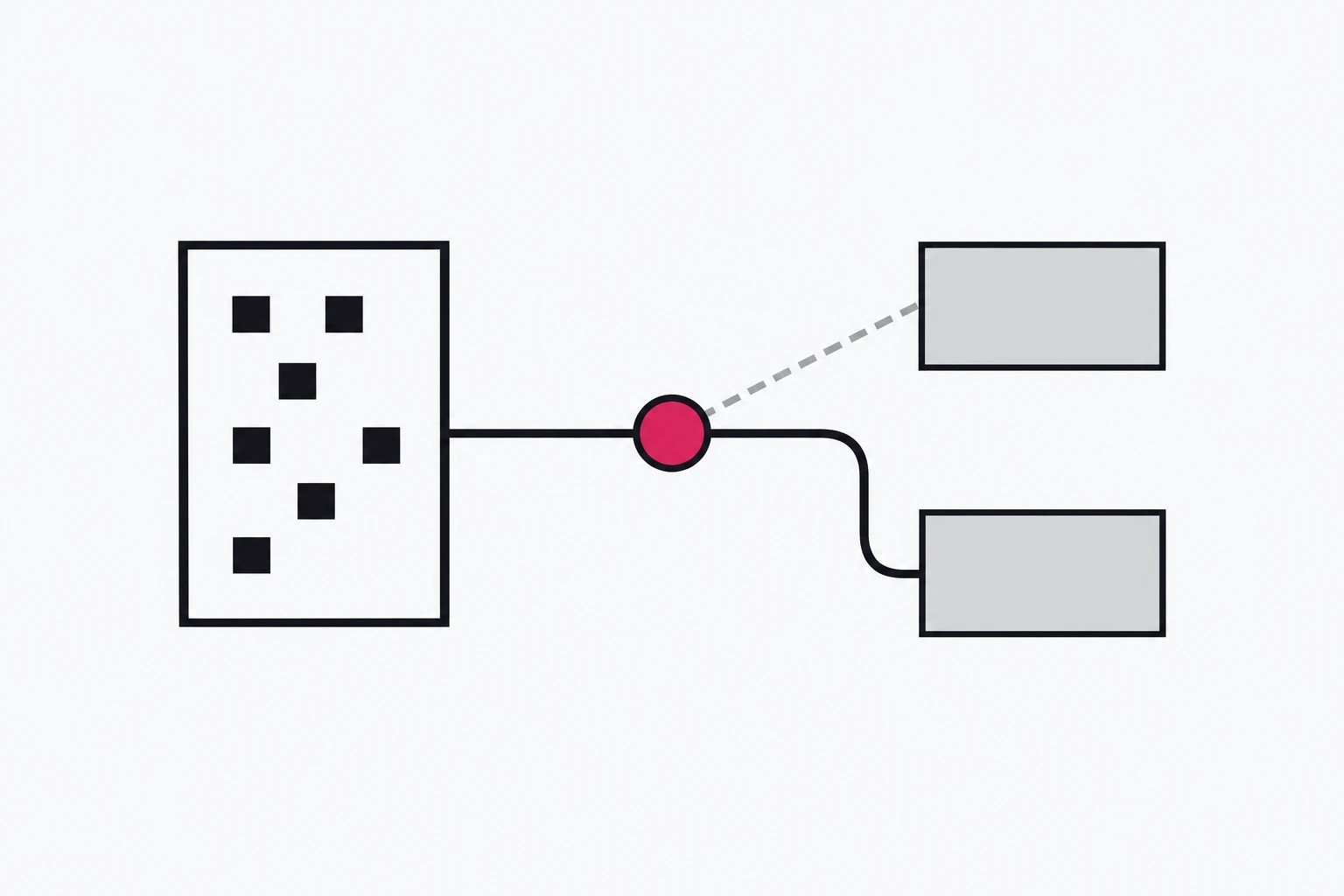
Microsoft is finishing three rollouts that change what happens to a QR code posted in Teams. Codes from external senders now arrive blurred. Teams decodes QR codes in images in every chat and channel, checks the URL inside and warns when it judges the destination harmful. Tenants with Defender for Office 365 evaluate those URLs again after delivery and can block internal messages. If you share event, campaign or packaging codes with agencies and partners in Teams, a machine now reads your code before any person scans it, and the URL inside it is what gets judged.
Three layers, one picture
The three changes come from three Message Center posts, and they are easy to confuse because all three put something over or next to your image.
| Layer | What it does | Whose messages | Outcome | Admin control |
|---|---|---|---|---|
| Blur (MC1470410) | Obscures images containing a QR code until the reader selects Reveal QR code | External senders | Blur only, no verdict | None; on by default |
| Teams detection (MC1526651) | Decodes QR codes in inline images and evaluates the destination | Internal and external; 1:1, group and meeting chats, channels | Warning | Malicious URL protection, on by default |
| Defender post-delivery (MC1490905) | Extracts URLs from QR codes after delivery and evaluates them | Internal and external | Warning; some internal messages blocked | Defender Teams protection, ZAP for Teams |
The timing: the blur reached general availability in late October 2026 after slipping from mid-October (MC1470410, updated 2026-10-26). Defender's post-delivery evaluation was due to complete by early November (MC1490905, published 2026-10-07). Teams' own detection begins rolling out worldwide in early November and is expected to complete in mid-November (MC1526651, published 2026-10-26). By the middle of the month, every tenant should have all three.
Teams detection needs no extra licence: it rides on Malicious URL protection, which Microsoft describes as "available for all Teams users as part of base protection". Defender's layer, and any blocking, needs Defender for Office 365 Plan 1 or 2. Microsoft does not say whether Teams detection and Defender's evaluation are one pipeline or two, so treat them as separate checks that can both fire.
What your recipients now see
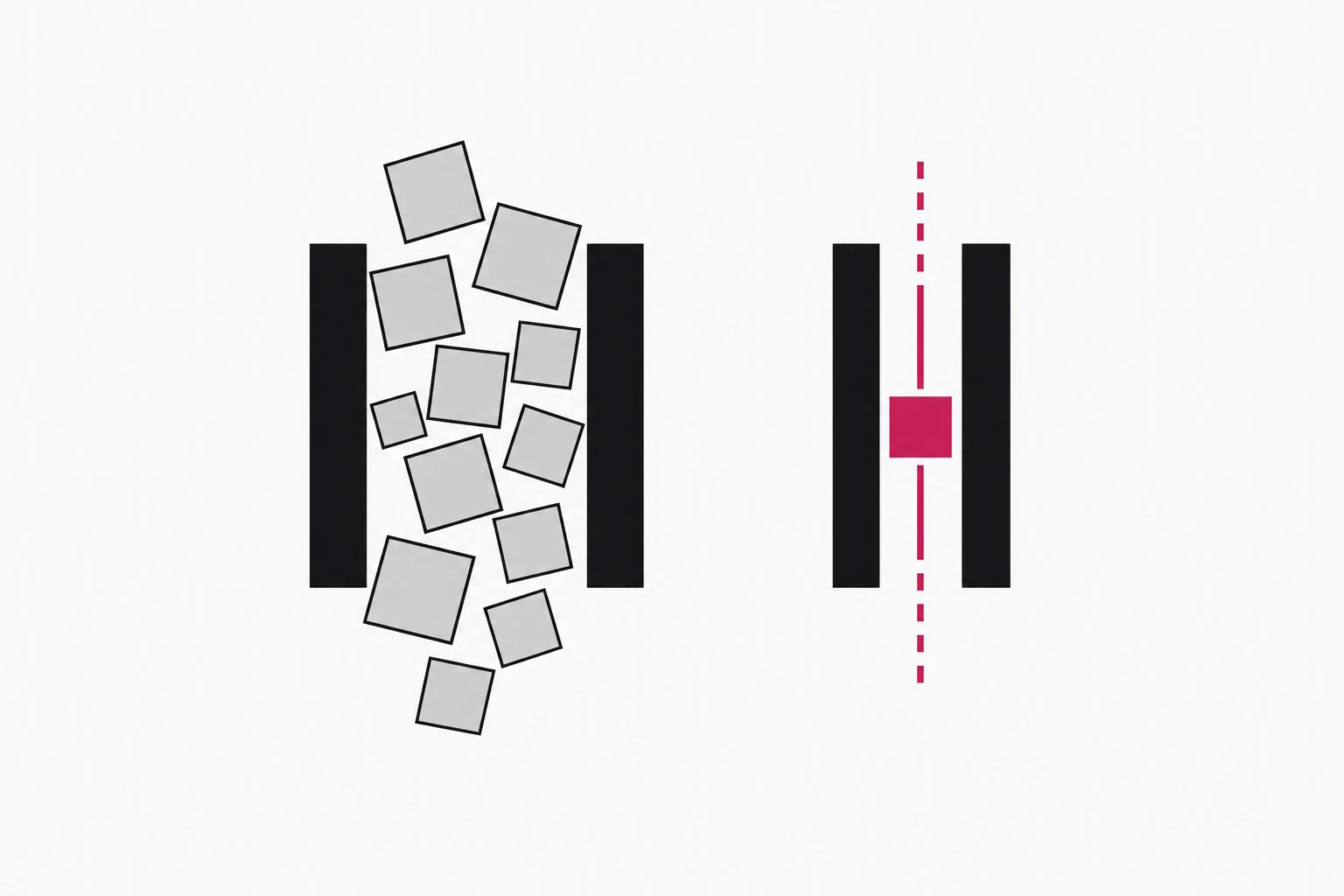
A blurred image, every time it crosses the tenant boundary. Teams obscures "images that contain QR codes by default" in messages from external senders, and readers must select Reveal QR code to scan it, according to Microsoft's QR code obscuring page. The blur is triggered by who sent the image, not by what the code points to. An agency posting a packaging proof into a client's chat, or a client sending event codes to a partner, will see blurred images on the other side every time. The same page says "there are no admin controls to enable or disable it."
A warning when the destination looks harmful. When Teams judges a QR destination malicious, readers see "This message contains a link that might be harmful" and a "Learn about file and link safety" link (MC1526651). Malicious URL protection shows its warnings "to both the sender and all recipients", and it applies to everyone in a conversation if any participating organisation has it on.
A block only in narrow cases. ZAP for Teams quarantines internal messages identified as malware or high-confidence phishing up to 48 hours after delivery; external messages are not supported. Only admins can see quarantined Teams messages, and users get no quarantine notification. The one outright block of external codes is on Teams mobile in mainland China, where all QR images are blurred and messages with a malicious code are blocked (MC1526651).
What the check is looking at
The URL, not the design. Teams "automatically scans the URL against threat intelligence databases", per the Malicious URL protection page. Safe Links for Teams checks URLs "against a list of known malicious links when the protected user clicks the link", without rewriting them. Your logo, colours and frame are irrelevant to either check.
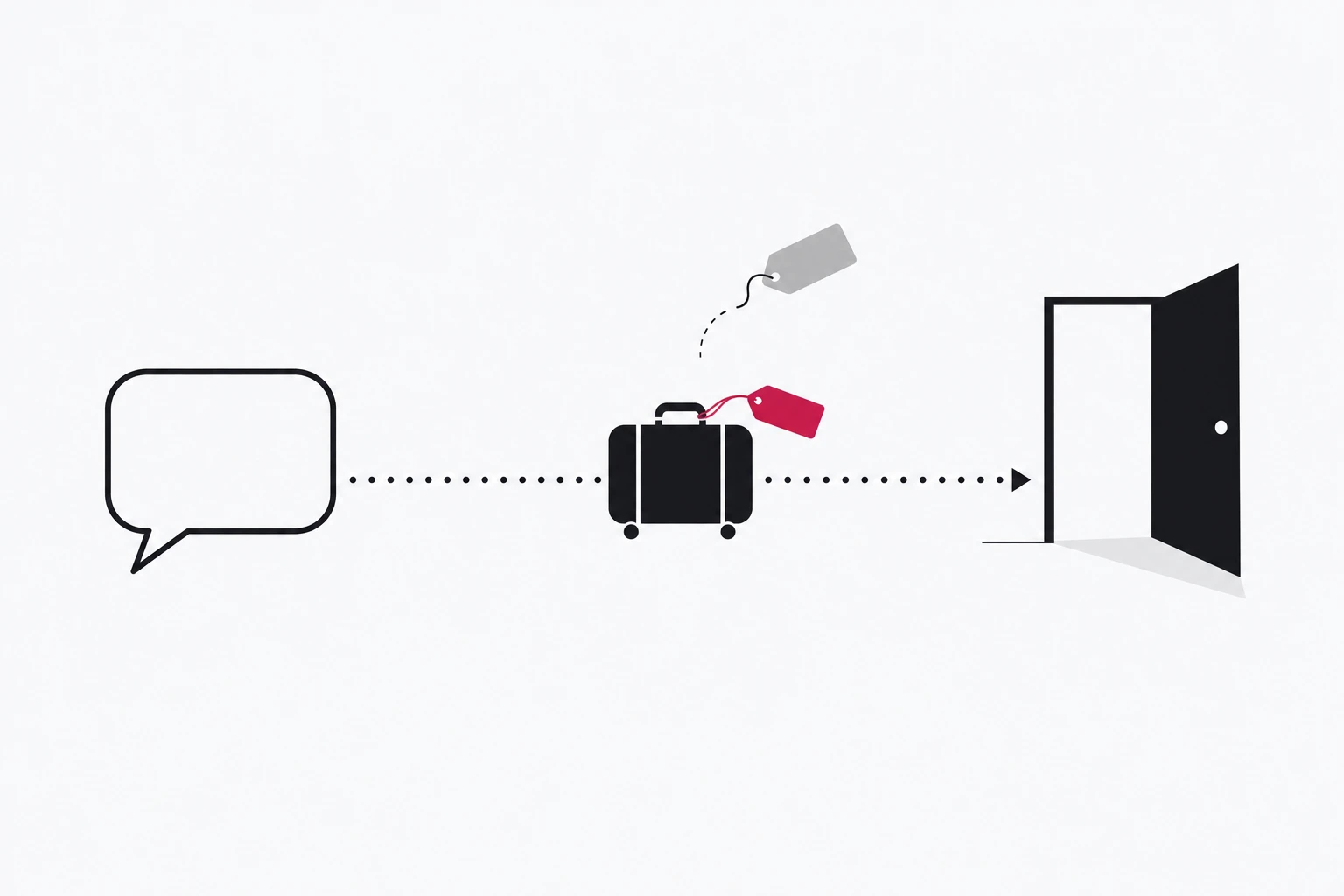
Microsoft does not document how its reputation systems treat URL shorteners or redirect chains, so what follows is reasoning, not documented behaviour. A reputation lookup can only judge the hosts it is given. A code that encodes a link on a shared shortener domain hands the checker a domain whose history is everyone's links, good and bad. A code that bounces through three tracking hosts before the landing page gives a checker three hosts to judge and gives a human reader no idea where they will end up. A code on your own subdomain with one hop to the final page gives both the checker and the person deciding whether to press Reveal one name to evaluate: yours. The human side of that test is covered in Your QR codes now have to pass the "check the URL" test.
Sharing codes that pass
- Paste the URL as text next to the image. The reader can check where the code goes without revealing or scanning it, and the text link gets the same URL protection as any other link in the chat.
- Encode a short link on your own subdomain, such as
go.yourbrand.com, not a generator's or shortener's shared domain. - Keep it to one redirect hop from the short link to the final page. Every extra host is one more thing to be judged and one more thing to debug; our piece on redirect chains shows how hard that gets.
- Do not recycle links. A path that once pointed somewhere questionable, or a domain you bought second-hand, carries that history into the check.
- Review the artwork as a file plus the URL, not as a screenshot to be scanned off a screen. Reviewers check the destination by reading it; the blur and the detection described above apply to images in the message.
- If a legitimate code is warned, send your contact the URL and ask their admin to look it up (see the admin section below) rather than re-posting the same image.
Does this inflate your scan counts?
Microsoft's posts say URLs from QR codes are "extracted" and "evaluated", and the Teams pages describe checks against threat intelligence databases and lists of known malicious links. None of the Teams documentation says whether any of these systems requests the destination URL. A lookup against a reputation list never touches your redirect; a fetch or sandbox visit would. For email, Microsoft's older QR phishing datasheet says a QR URL "is also sent to an isolated sandbox environment to be securely opened and detonated if need be". For Teams, it is undocumented either way.
So watch for it rather than assume. The signature would be a hit on a code within minutes of posting it in Teams, from a cloud network, before anyone could have printed or scanned it. The signals that separate scanner visits from people, and why the user agent alone is weak, are in Security scanners are clicking your email links first. The simpler fix: never share the production code for review. Give each placement its own link, and give the review copy its own link too, so whatever reads it in Teams never lands in campaign numbers.
Where rii.link fits
A rii.link QR code encodes your short link, never the destination, so the decoded URL names your custom domain, which takes one DNS record to set up. The redirect type is a per-link setting (301, 302, 307 or 308), and the short link answers with that redirect to the destination you set. Destinations are checked against Google Web Risk when a link is created or edited, and flagged URLs are refused. Known crawlers, preview agents and uptime monitors are excluded from analytics, as our security page describes.
For admins
- Teams detection follows Malicious URL protection. Microsoft's Learn page places it at Messaging settings > Messaging safety > Scan messages for unsafe URLs in the Teams admin center; MC1526651 calls the path Settings and policies > Messaging Safety. On new tenants it is part of the baseline and needs no setting. There is no separate QR switch, so turning URL protection off also turns QR detection off.
- Blocking needs ZAP for Teams: in the Defender portal, Settings > Email & collaboration > Microsoft Teams protection > Turn on ZAP for Teams, with Defender for Office 365 Plan 1 or 2, per Microsoft's Defender for Teams page. ZAP for Teams is not available in GCC, GCC High or DoD.
- Investigating a false positive: MC1490905 says QR-extracted URLs appear with
QRCodein theUrlLocationcolumn ofMessageUrlInfo. The table's Learn schema does not list that column yet, so confirm it in your tenant. Advanced hunting on Teams messages is a Plan 2 feature.
MessageUrlInfo
| where UrlLocation == "QRCode"
| project Timestamp, TeamsMessageId, Url, UrlDomain, ThreatTypes- The blur has no admin control. Tell users what it means before they open tickets about it.
Written by
Florian
Florian builds rii.link, the routing layer behind short links: redirects, dynamic responses and links that answer AI agents. He writes The Redirect about what happens between a click and its destination.